Understanding Build Status — What Happens After You Hit Publish
Submitting for publishing kicks off an automated build pipeline. Here's exactly what happens at each stage, what the status badges mean, and how to track your app to the App Store.
1 The publish pipeline at a glance
From the moment you click Publish in the App Builder, your app goes through four stages:
- 1App Preview — You review the design on the preview page and confirm it looks right.
- 2App Listing — You fill in the metadata form (name, description, icon, screenshots).
- 3Build — MobiDrag compiles your React Native bundle and creates the .ipa (iOS) and .apk (Android) files.
- 4Store Review — Apple and/or Google review the build. Once approved, it goes live.
2 Completing the App Listing form
After clicking Publish on the App Preview page, you land on the App Listing form — the last step before the build starts.
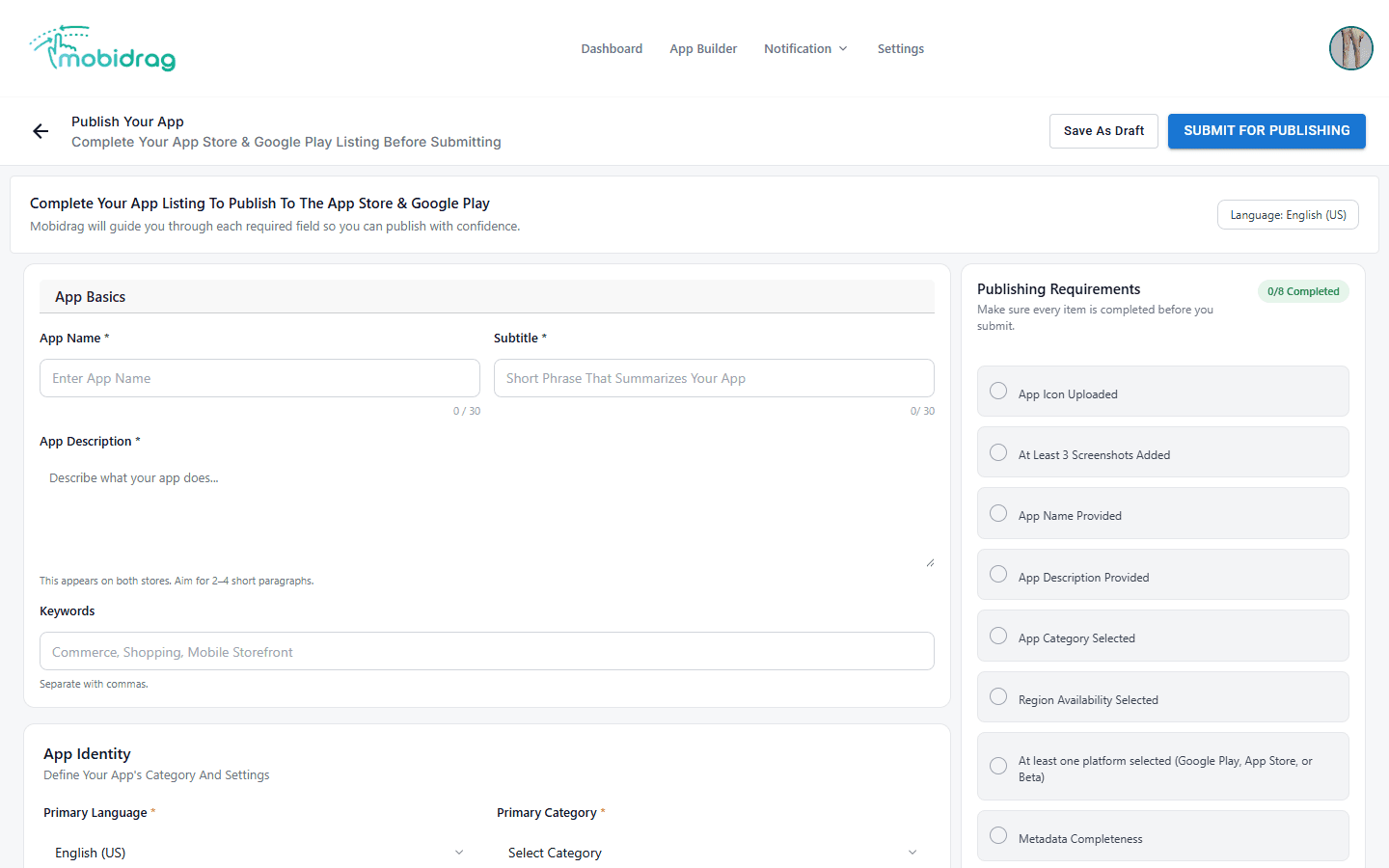
The form is divided into sections:
- App Basics — App Name, Subtitle, Description, Keywords
- App Identity — Language, Category
- App Icon — 1024×1024 px PNG, no transparency
- App Screenshots — minimum 3, taken from the preview page
- Platform & Region — App Store, Google Play, or Beta; and target countries
3 Publishing requirements checklist
The right panel shows 8 requirements that must all be checked before the Submit button becomes active:
| # | Requirement | How to complete it |
|---|---|---|
| 1 | App Icon Uploaded | Upload a 1024×1024 px square PNG in the App Icon section |
| 2 | At Least 3 Screenshots Added | Add 3 or more screenshots using the screenshot uploader |
| 3 | App Name Provided | Fill in the App Name field (1–30 characters) |
| 4 | App Description Provided | Write at least 2–4 sentences describing your app |
| 5 | App Category Selected | Pick a primary category (e.g. Shopping, Lifestyle) |
| 6 | Region Availability Selected | Choose which countries your app will be available in |
| 7 | Platform Selected | Select at least one: Google Play, App Store, or Beta |
| 8 | Metadata Completeness | Automatically checked when all other fields are valid |
Click Save As Draft to save progress and return later. Your listing data is preserved so you can complete it across multiple sessions.
4 Status badges explained
The Status badge in the App Information sidebar tells you where your app is in the pipeline:
5 After you submit: the build process
Once you click SUBMIT FOR PUBLISHING, MobiDrag triggers an automated build pipeline:
- 1Bundle generation — Your block configurations and brand settings are compiled into a React Native JavaScript bundle.
- 2Native build — The bundle is injected into the iOS and/or Android native shell app and compiled into a signed binary (.ipa / .apk / .aab).
- 3Upload — The binary is uploaded to Apple's App Store Connect or Google Play Console using your registered developer credentials.
- 4Notification — MobiDrag emails you when the build completes and when the store review is underway.
Build times are typically 15–25 minutes. Do not navigate away or resubmit during a running build, as this can create duplicate submissions.
6 App Store & Google Play review
After the binary is uploaded, each platform runs its own review:
| Platform | Review time | Common rejection reasons |
|---|---|---|
| Apple App Store | 1–3 business days | Missing privacy policy, low-quality screenshots, placeholder content still visible |
| Google Play | Hours to 1–2 days | Incomplete app description, policy violations, missing content rating |
If your app is rejected, MobiDrag will display the rejection reason from the store in your dashboard. Fix the issue, update your listing if needed, and resubmit.