How to Download Your Build for Testing
Before submitting to the App Store, you can install a test build directly on your device to verify the final app experience. Here's how to download and install it.
1 Testing options overview
MobiDrag gives you several ways to test your app before it reaches the App Store. Choose based on how much fidelity you need and how quickly you need it:
| Method | Setup time | Fidelity | Best for |
|---|---|---|---|
| QR Code Preview | Instant | High — live data, real blocks | Quick design checks during building |
| Beta Build | 20–30 min build | Full native app | Pre-launch UAT, stakeholder review |
| TestFlight (iOS) | ~1 hr (Apple review) | Full native app | Distributing to a team of iOS testers |
| Android APK | 20–30 min build | Full native app | Sideloading on Android test devices |
2 Option A: QR code live preview (quickest)
For most design and content checks, the QR code preview is the fastest way to see your app on a real device. No build needed — it opens in your phone's browser in seconds.
- 1In the App Builder, click Publish to open the App Preview page.
- 2In the right sidebar, click Generate QR Code.
- 3Scan the QR code with your phone's camera.
- 4The live preview opens full-screen in your browser.
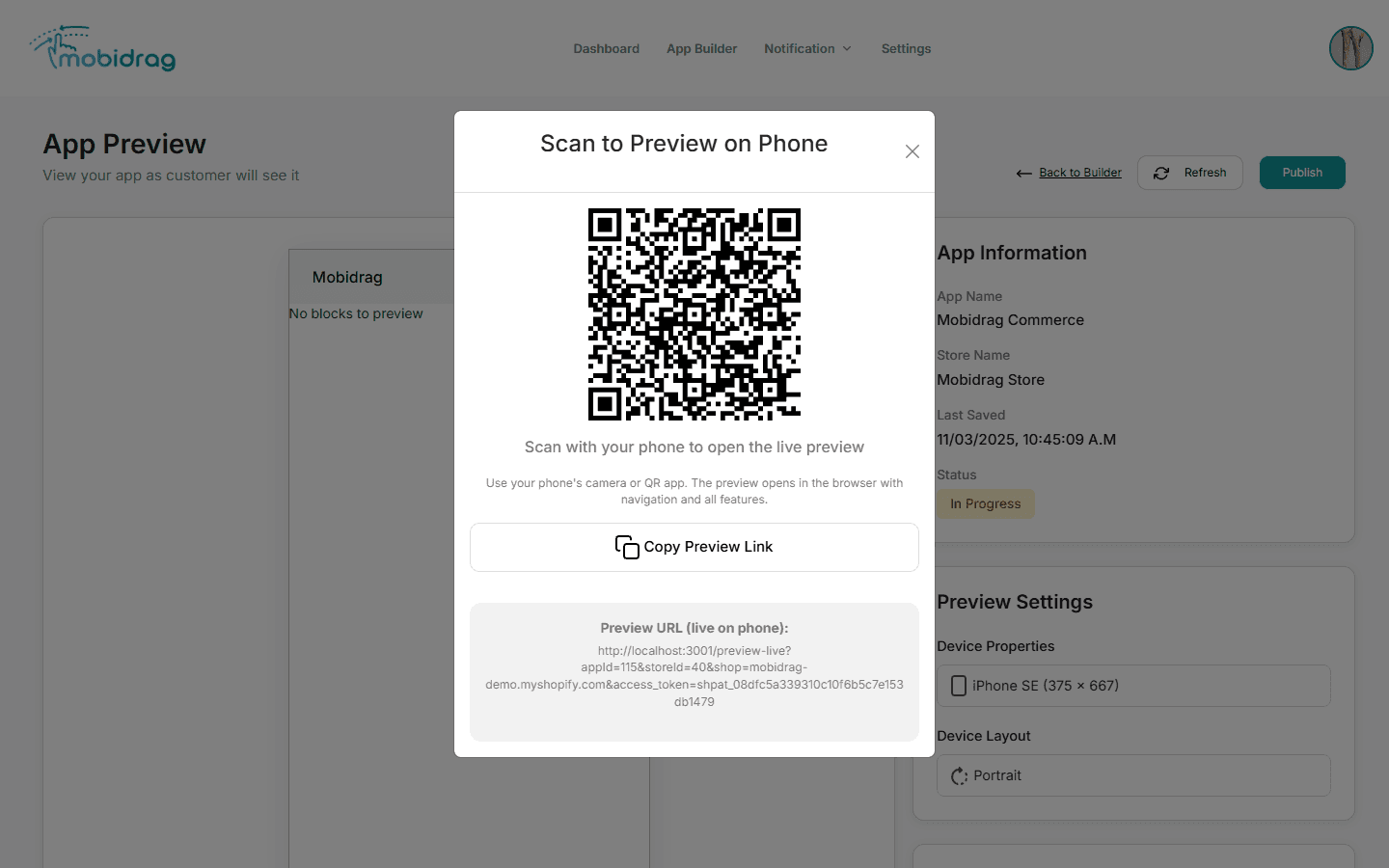
The QR preview does not require a build to complete. Use it freely during design iterations — it reflects your last saved state.
3 Option B: Submit a Beta build
A Beta build is a full native app binary, identical to a production release, but flagged for internal testing rather than public distribution. This is the closest you can get to the real app without going through full store review.
- 1Go to the App Listing form (click Publish on the App Preview page).
- 2Under Platform & Region, select Beta as your target platform.
- 3Complete the required fields and click SUBMIT FOR PUBLISHING.
- 4The build pipeline runs (~20–25 minutes).
- 5Once the build is complete, a download link or distribution invite is sent to your registered email.
4 Option C: TestFlight for iOS testers
If you submit with App Store selected as the platform, you can use Apple TestFlight to distribute the build to up to 10,000 external testers before public release:
- 1After a successful build, log in to App Store Connect (appstoreconnect.apple.com).
- 2Find your app and go to the TestFlight tab.
- 3Add tester email addresses in the External Testing group.
- 4Testers receive an email invite to install TestFlight from the App Store and then download your beta.
- 5Apple's TestFlight review takes up to 1 business day for the first beta submission.
TestFlight links expire after 90 days. Submit a new build before the link expires to keep testers on the latest version.
5 Option D: Android APK sideload
For Android, you can request an APK file to install directly on a test device without going through Google Play:
- 1Contact MobiDrag Support and request an APK build for your app.
- 2MobiDrag generates and emails you a signed debug APK.
- 3On your Android device, go to Settings → Apps → Special App Access → Install Unknown Apps and allow your file manager or browser.
- 4Open the APK file on your Android device and tap Install.
- 5The app installs like any Play Store app. You can keep it alongside the production version.
APK sideloading requires enabling Unknown Sources on your Android device. Remember to disable this setting again after installing, as a security best practice.
6 Finding your builds in the App Listing
All your submitted builds are visible in the Publish Your App page. The status of each build is tracked in real time:
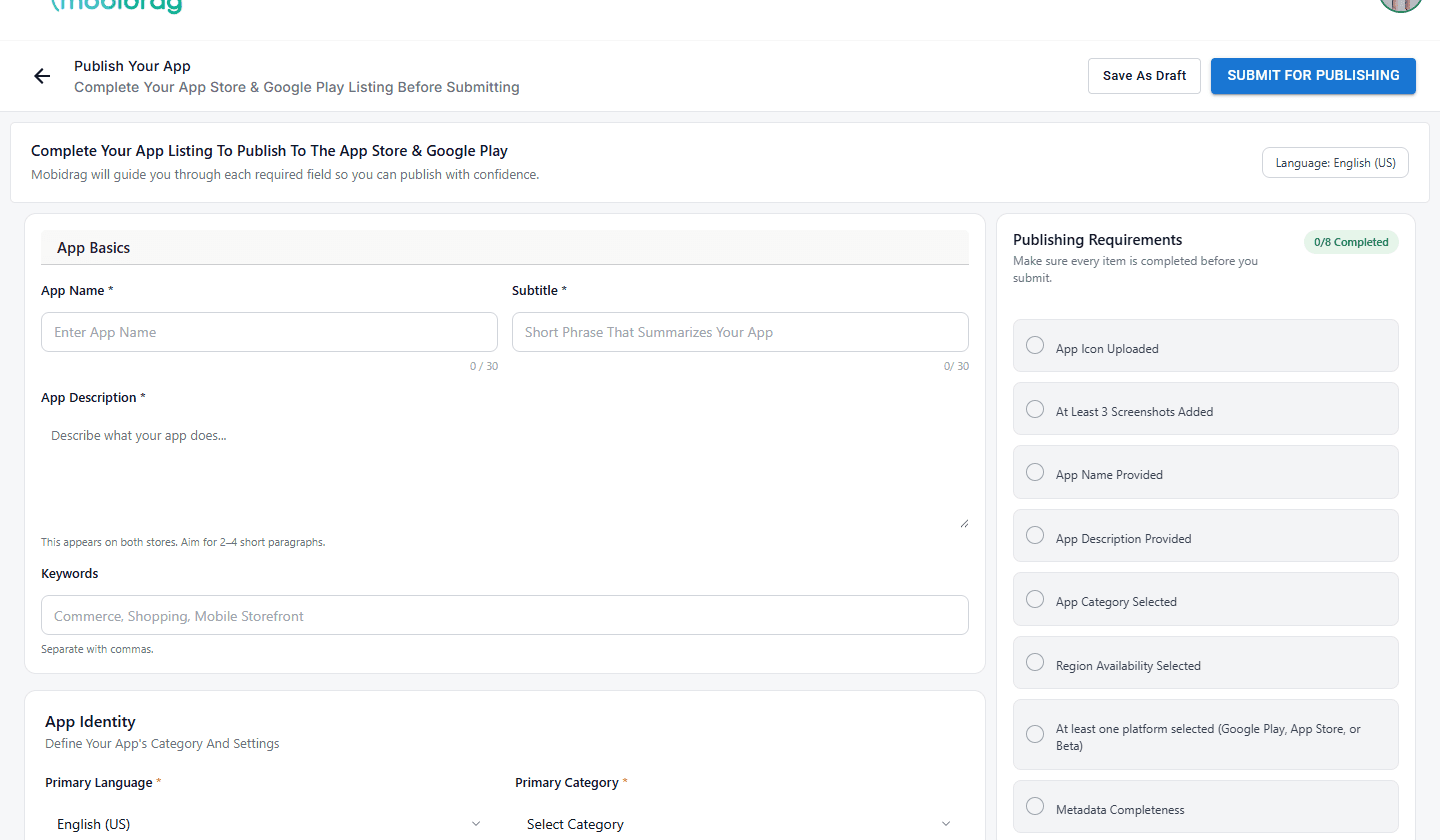
From the App Listing page you can:
- Monitor the current build status (Queued, Building, In Review, Published, Failed)
- View the build log if a build failed
- Re-submit after fixing a rejection
- Save a draft to update metadata before the next release