Generating a QR Code to Preview Your App on a Real Device
The on-screen preview is great, but nothing beats holding your actual phone. Generate a QR code in seconds and scan it to open a full-screen live preview in your phone's browser.
1 How the QR preview works
MobiDrag hosts a live preview URL for every app. When you scan the QR code, your phone's browser opens this URL and renders your app full-screen — the same experience your customers get when using the published app, but without going through the App Store.
The preview includes:
- All your blocks, colours, and fonts exactly as designed
- Real navigation (bottom nav bar, side drawer)
- Live product data from your Shopify store
- Touch gestures (scroll, swipe)
The preview URL is not the App Store listing — it is a web-based preview. Your phone does not need to have the published app installed to scan and test it.
2 Generating the QR code
The Scan to Preview section is in the right sidebar of the App Preview page, below Preview Settings.
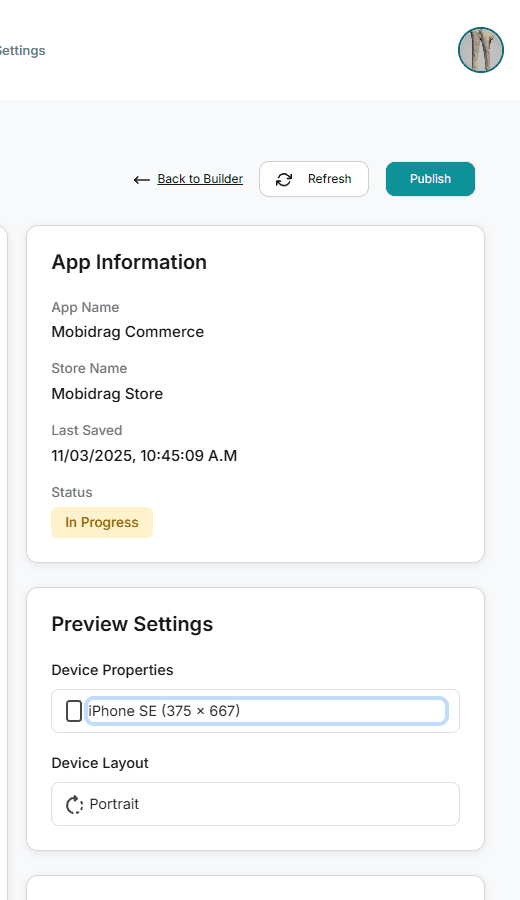
- 1Go to the App Preview page (click Publish in the App Builder toolbar).
- 2Scroll down the right sidebar to find the Scan to Preview card.
- 3Click Generate QR Code.
- 4A modal opens displaying your QR code, a Copy Link button, and the preview URL.
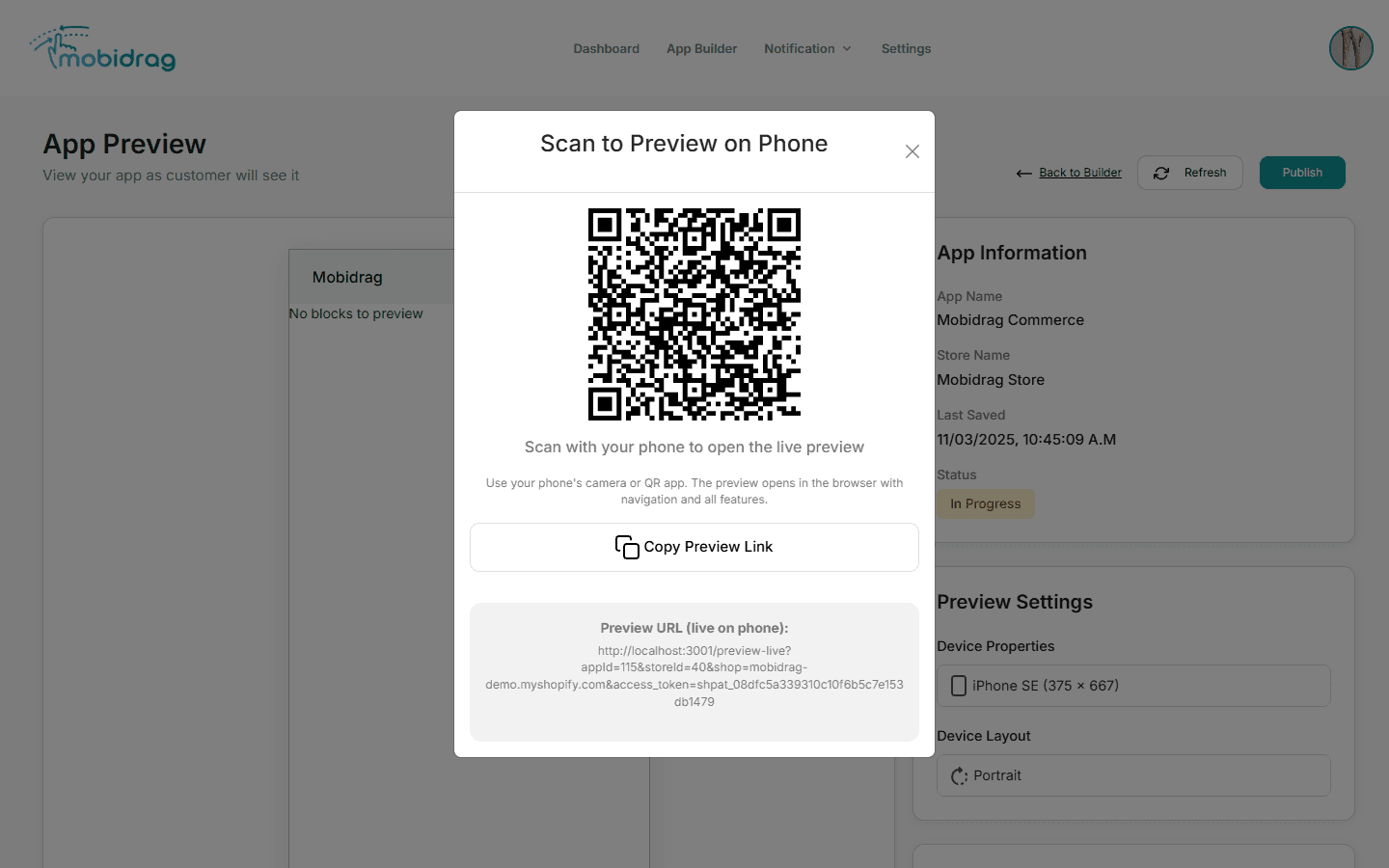
3 Scanning the QR code
Use your phone's native camera app to scan — you do not need a separate QR scanner app on modern iOS or Android.
- 1Open the Camera app on your iPhone or Android phone.
- 2Point the camera at the QR code on your screen. Hold it steady for a second.
- 3A notification banner appears at the top of your screen with a link.
- 4Tap the banner. Your phone's browser opens the live preview full-screen.
- 5Scroll, tap, and interact — it behaves just like the real app.
On iOS, use Safari for the best preview experience. On Android, Chrome works best. If the preview URL opens in a different browser, copy the URL from the address bar and paste it into Chrome or Safari.
4 Sharing the preview link
You can share the preview with your team without them needing access to the MobiDrag dashboard:
- 1In the QR modal, click Copy Preview Link.
- 2The full preview URL is copied to your clipboard.
- 3Paste it into Slack, email, WhatsApp — anyone with the link can open the preview on their phone or desktop browser.
The preview URL contains your App ID and Store ID as parameters. It is unique to your store and does not expire while your account is active.
5 Tips and troubleshooting
| Issue | Fix |
|---|---|
| QR code does not scan | Make sure your screen brightness is high. Try zooming out the browser so the QR code fills more of the screen. |
| Preview shows old content | Go back to the App Builder, save your latest changes, then return to App Preview and click Refresh before generating a new QR. |
| Preview URL gives an error | Check that your Shopify store is connected in Settings and that the access token is valid. |
| Products not loading | The preview fetches live data from your store. Ensure your store is accessible and the Shopify API token has not expired. |